Showing posts with label teacher planner. Show all posts

Saturday, 14 December 2019

Using Go Digital Planners in OneNote

I've just launched a new product range which I'm super excited about; The Go Digital Planner!

After using printable planners for years, I decided that 2020 will be the year I cut down on my paper usage and take the plunge into the world of digital planners 😁

Digital planners are awesome because of their flexibility across a range of programs. The Go Digital Planners come in a PowerPoint file while means they automatically open in PowerPoint and can be used with Slides in Google Docs. If you are using PowerPoint or Slides these planners are ready to go, you can start typing away.

Another awesome program which the planners can be used in is OneNote. I've had quite a few people ask about how they can be used in OneNote so I decided to make a quick tutorial in setting it up. To set up the planner, you will need to copy across the page backgrounds and tables. Follow the visual guide below and you will be up and running in no time!

Please note: I am using the Mac version of OneNote. It may appear different in Windows, but the instructions are pretty much the same. 

Step #1 - Open the planner PowerPoint and keep it open


Step #2 - Open OneNote and set up your Planner Notebook


Step #3 - Create sections by using the tabs and pages options


Step #4 - Copy across the page background (repeat this step for each type of page)
Switch back to the PowerPoint window and click on the coloured banner at the top of the page. This will select the page background. Copy it to your clipboard, switch to the OneNote window and paste it.


You will need to resize the image by dragging it out.

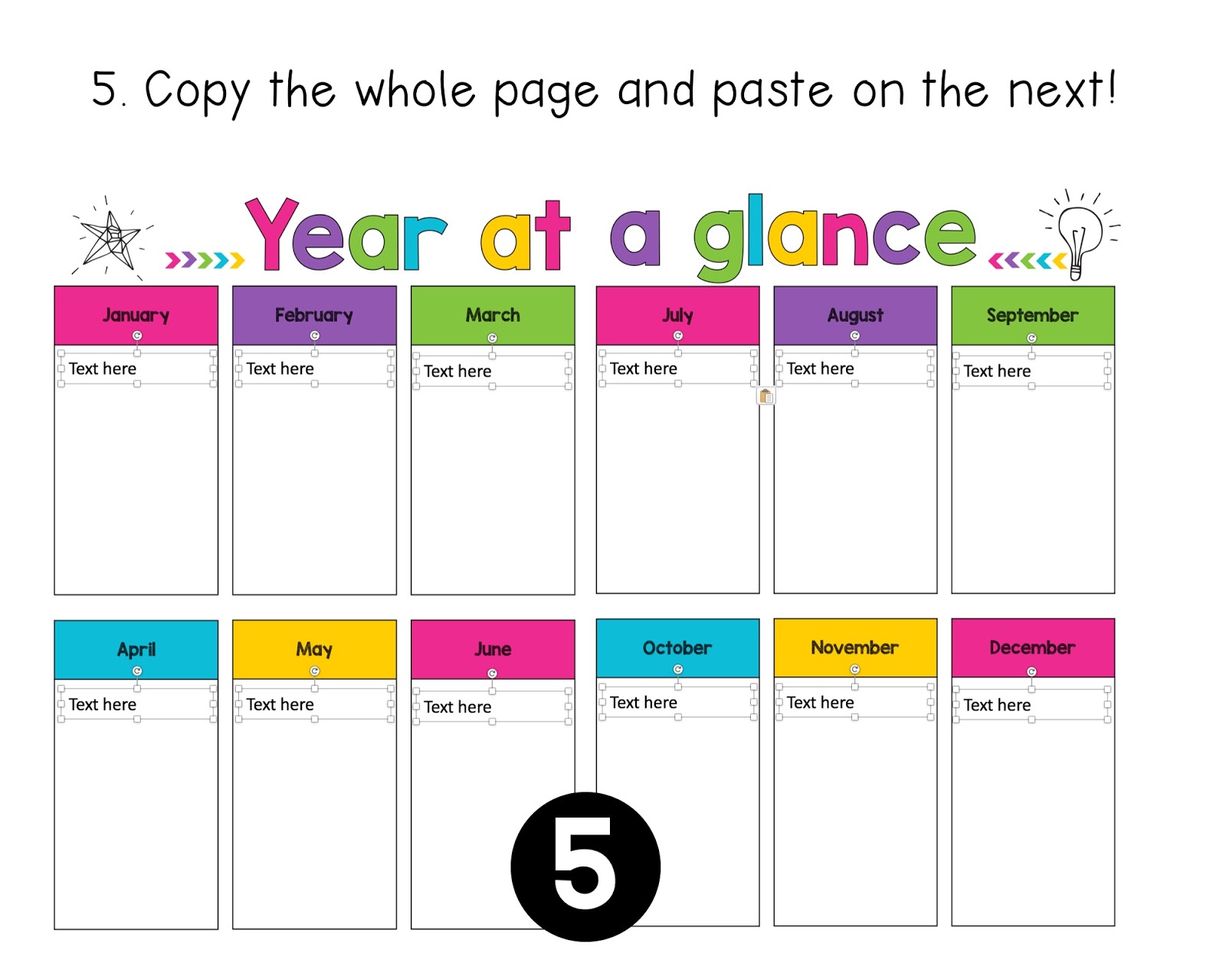
Step #5 - Copy across the table (repeat this step for each type of page)
Switch back to the PowerPoint window and click on the table. This will select the table. Copy it to your clipboard, switch to the OneNote window and paste it.

You will need to drag the table into the right position and stretch it out. Once your table is the right size, you can start adding your information.


IMPORTANT - Duplicate Pages (Overview and Weekly Plans)
You only need to set up these pages once! Once they are in OneNote, you can simply duplicate the pages. This can be done by right-clicking on the page, copying it and then pasting it.


Once set up, you can then start using your planner across multiple devices and take advantage of all the tools in OneNote. My personal favourite is the To Do check box!


I hope this tutorial has helped you in setting up your Go Digital Planner in OneNote.

Happy Planning,


Monday, 8 January 2018

Using my Teacher Planners Digitally

One of the most frequently asked questions I get about my teacher planners is whether they can be used digitally and if so how to set it up. I have not inserted text boxes as some would like to use it as a print and write planner and placing "text here" boxes would interfere with the printing. In order to use my planners digitally, you will need to insert your own text boxes. This might seem like a daunting task, but with these tips and tricks it's not as time-consuming as you would think.

Copy and Paste is your best friend!

A lot of the boxes are the same size and in the same position on each page, so once you have one page set up with the boxes, you can simply copy the text boxes and then paste them onto the next page.


Choosing the right font size

With a table, you can still use a text box and hit enter to move to the new lines. The key to this is choosing the right font size.


If your table has more than one column, simply copy and paste the text box across.


Alignment Lines

One of my favourite things about PowerPoint is the alignment lines that come up when you are dragging items around. These are super useful for making sure that things are lined up properly and evenly spaced.


Here is a visual on how to set up the weekly pages.


I hope this helps you in setting up a digital version of your planner. As always if you have any questions please send me an email or leave a question on my TPT Store!

Wednesday, 28 December 2016

Teacher Planner

It's that time of the year when I should be relaxing, but instead, I'm thinking abut next year. Isn't that the case for everyone? :P

One of my "must have" products for every year is a Teacher Planner. They're better than a standard diary because of the planning pages. However, most of the time I find that there are pages that I have no use for and then the pages that I want are not included. So this year, I decided to take the leap and make my own planner and I think it worked out pretty well.

Here are 10 reasons why I love my new planner - and you will too!

1) It's bright and modern!


If I have to look at this every day for the year, I need it to be visually appealing. Also being bright means it is harder to lose on my desk ;)

2) It has a 'Year at a Glance'


I find this more useful than the yearly calendar as I can write in the important dates for each month rather than circling a date and then forgetting why I circled it later on.

3) Birthdays and Class List


You'd be surprised how many times you randomly need these pieces of information. Saves time as I can just flip open to these pages rather than going on the computer to search.

4) Professional Development Tracker


Won't be losing this log anytime soon! (well unless I lose my diary :P)

5) Award Tracker


This is the only tracking sheet I like to keep in my diary, this helps ensure that every student receives an award by the end of the year. I like to divide it up by school terms and by award type.

6) It is divided up into Australian school terms


I've always had to use sticky notes to divide up my diary, but not anymore because it's done for me! Also #igotthis because this should be everyone's mantra at the start of a new school year!

7) It has a term overview


This can be used for curriculum topics or important days throughout the term. I like to map out both. 

8) Weekly pages on a double page spread


This is pretty standard across all planners. I like seeing the week planned out as a whole. The notes part on the side is a great place to make a to-do list.

9) It can be used YEAR AFTER YEAR


I haven't put any dates or years in my diary. Instead, I can handwrite it in the spaces provided. 

10) It is EDITABLE

I can duplicate or remove pages when needed. I can also type in whatever I need.

I can't wait to print and bind it. I'm feeling super organised already :D

You can get your own copy from my TPT store by clicking the picture below.